Linux commands: file management
A path tells the computer where a file is
A path is a file's address. A relative path starts from the current working directory, the directory your shell is using now. A path beginning with / starts at the filesystem root, the top of the directory tree. For example, notes/today.txt depends on where you are; /home/sam/notes/today.txt starts from the root.
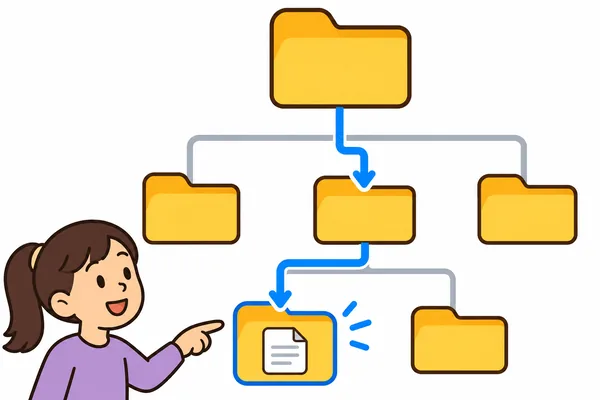
A file path describes where a file sits inside the folder tree.
Before changing files, check where the command will look and which names it will affect. pwd prints the current directory. ls -la lists visible and hidden entries, along with details such as ownership and permissions. For one path, stat file reports metadata, details such as size and permissions, and file file guesses the content type from the data. A directory's execute permission allows a user to search or pass through it, provided other access checks also allow it.
Create, copy, move, and remove carefully
mkdir -p path creates a directory and any missing parent directories. cp copies data. mv renames or moves a directory entry, and rm removes entries. On one filesystem, a move is commonly a rename. Across filesystems, GNU mv may copy the contents and then remove the source. A quiet command can still fail, so check its exit status, the number that reports success or failure, and inspect the destination.
A symbolic link stores a path to another entry and can point across filesystems. A hard link gives the same file another name in the same filesystem. Filesystems also restrict which directories can contain hard links. Check links with readlink or ls -l before using them in bulk operations.
List matches before changing many files
This command finds regular files ending in .conf below /srv/app:
find /srv/app -type f -name '*.conf' -print
The quotes keep *.conf from expanding in the current directory. The shell removes the quote marks, and find receives the pattern to match as it walks the tree. Add -mtime, -size, or -user to narrow the search. Begin with a listing and inspect the results before using them in a command that changes or deletes files.
Filenames can contain newline characters, so a newline-separated list can become ambiguous when passed to another program. GNU Findutils offers -print0, and GNU xargs accepts -0. They separate paths with a NUL byte, a special zero byte that cannot occur in a filename. This is a GNU extension, so check portability before relying on it.
Check access and available space
chmod changes permission bits. chown and chgrp change ownership when the caller has the required privileges. A narrow change such as chmod u+x script.sh is easier to review than a broad recursive permission change. Changing directory permissions can also stop people or services from reaching paths below it.
When storage is tight, df -h shows capacity on mounted filesystems; du -sh directory estimates space used below a path. They answer different questions. Before cleanup, identify candidate files, review their paths, archive anything that must be kept, and remove only confirmed targets. Before recursive removal, which deletes a directory and everything below it, recheck the current directory and exact path. In scripts, quote expansions and pathnames so spaces remain part of one argument. Afterward, check selected paths with stat or ls and compare tree usage with du.
Interactive exercises